DuckStation Settings for Gran Turismo 2 (PS1 Emulator)
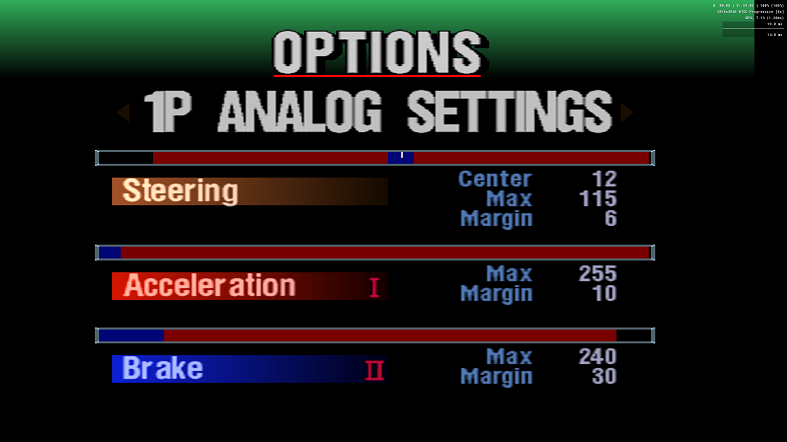
My original PlayStation 1 (SCPH-7502) and physical copy of Gran Turismo 2 (711719723523) were still working in 2024.
However, the emulated experience with DuckStation looks and feels amazing in 60fps 16:9 widescreen with functioning VRR at 175Hz and 2560×1440p resolution. It’s the best way I’ve found to run this iconic and revolutionary racing game from 1999.

- Current DuckStation Version
- From mid-2025 to mid-2026 any “Latest Rolling Release” I tried worked brilliantly!
- In 2024 some versions ran better than others for me.
- I avoid the dev preview versions.
- In 2024 some versions ran better than others for me.
My System & Configuration
Skip to the hardware I’m using and the various system settings I use for Windows and my nVidia graphics driver.
In 2025 I normally use a giga-rig PC from 2023 for GT2 gaming and recording. (7800X3D with RX6800 on PC Part Picker.) Contact me for any settings it uses.
My Settings for GT2 in DuckStation
- Summary
- BIOS
- Console
- Emulation
- Cheats
- Graphics
- Rendering
- Advanced
- PGXP
- OSD
- Audio
- Controllers
- Achievements
In 2026, DuckStation recommends keep the default Global settings. Only change the settings in the game profile. Some games need very different settings from each other. Game profiles can be exported and shared so long as everyone uses default global settings.
The settings below sometimes change names, move to other locations or merge into some other setting.
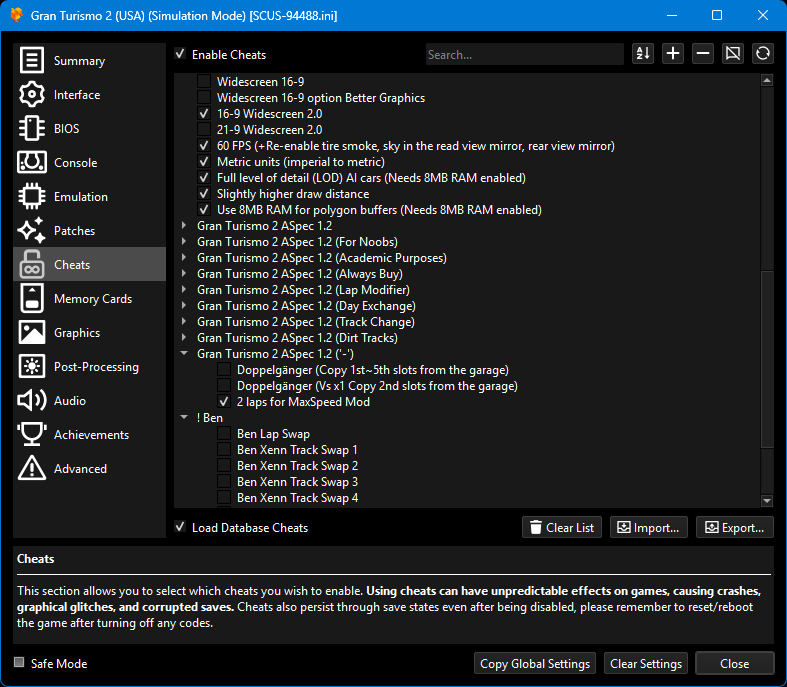
My 2025 DuckStation settings as one big image (310kB 1600×5500px)
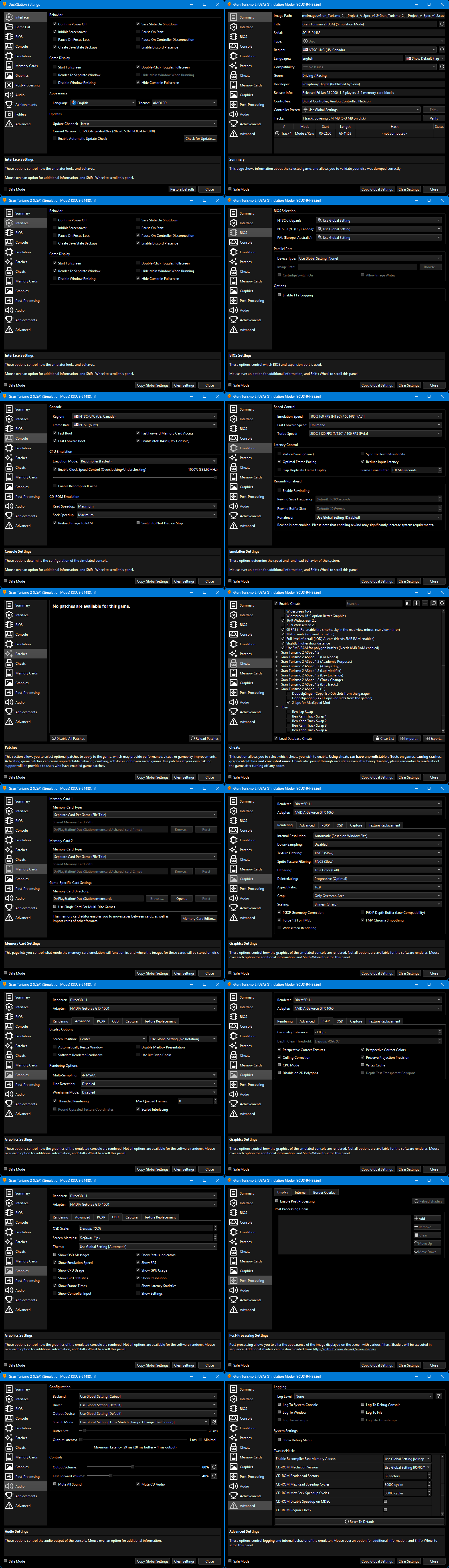
Summary
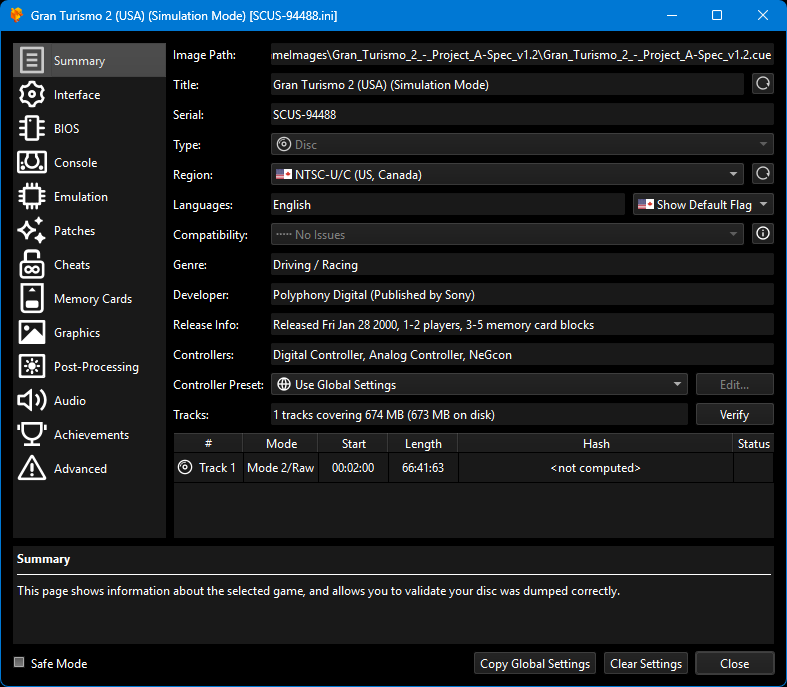
| Value | Reason | |
|---|---|---|
| Image Path | Gran_Turismo_2_-_Project_A-Spec_v1.2
| A-Spec is the best way to experience the game in 2025. |
| Serial | SCUS-94488 | Just so you know the exact version I’m playing. |
| Region | NTSC-U/C (US, Canada) | 30fps but with the GT Hi-Fi cheat code from Silent, unlocks true 60fps. PAL (UK) only has 25fps/50fps. |

Interface
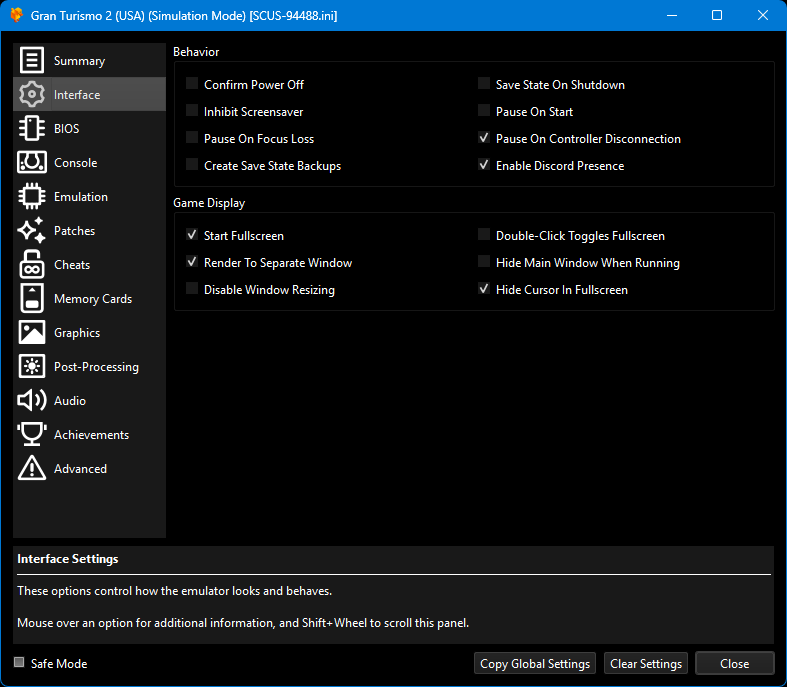
| Value | Reason | |
|---|---|---|
| Pause On Controller Disconnect | Ticked | Batteries always run out during bumpy mid-corner oversteer corrections. |
| Enable Discord Presence | Ticked | Playing games from the 1990s makes you look cool on the Internet. |
| Start Fullscreen | Ticked | I paid for 32 inches. I’m gonna use them all. |
| Render To Separate Window | Ticked | Tweak settings and cheats in DuckStation window while the game is fullscreen. |
BIOS
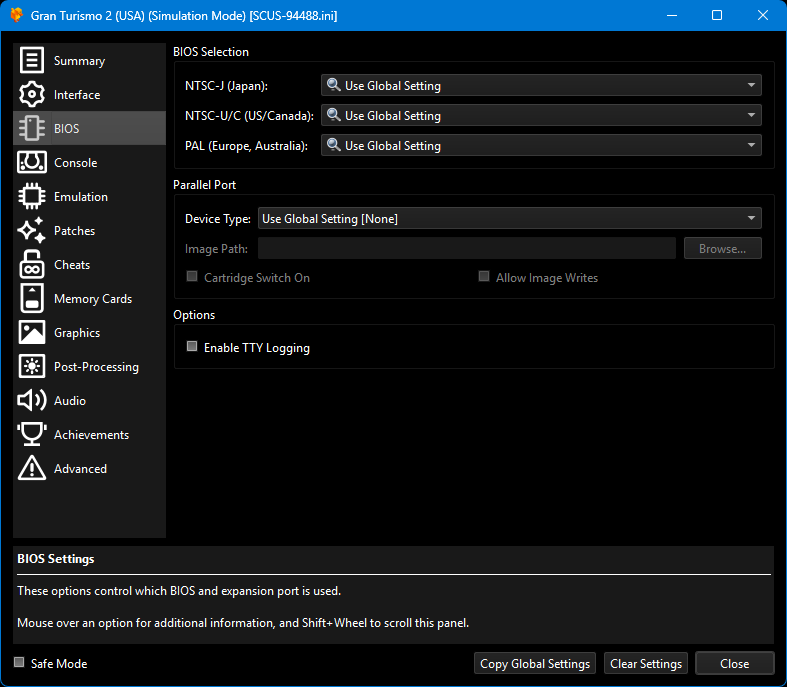
| Value | Reason | |
|---|---|---|
| NTSC-U/C (US, Canada) | SCPH1001.bin
| It’s usually called this so I called mine the same. |
Console
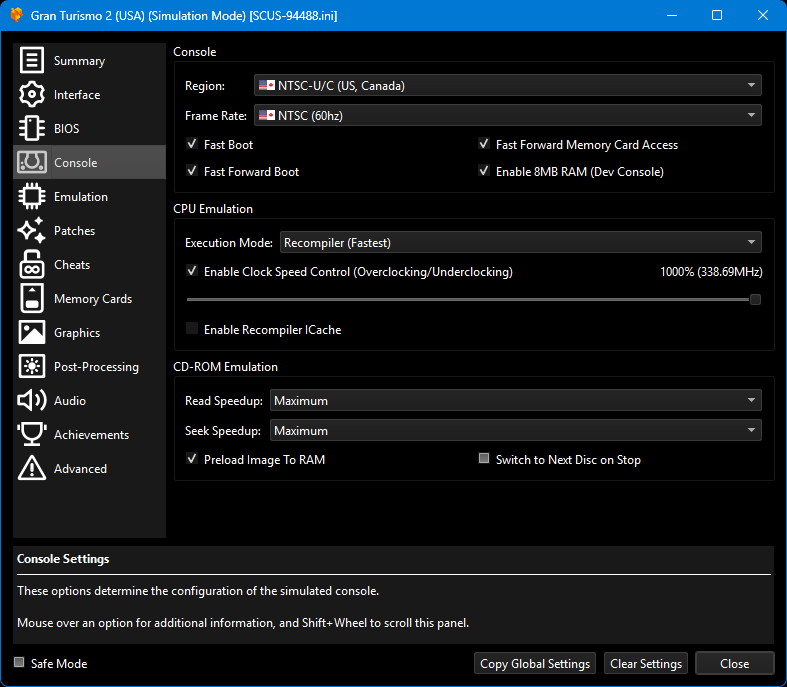
| Value | Reason | |
|---|---|---|
| Fast Boot | Ticked | Skips some of the console boot animation, maybe? It’s a nice nostalgia trip every time so maybe untick this. |
| Fast Forward Boot | Ticked | Reduces startup time by applying Emulation > Fast Forward Speed automatically. |
| Fast Forward Memory Card Access | Ticked | Reduces gamesave load/save times by applying Emulation > Fast Forward Speed automatically! |
| Enable 8MB RAM (Dev Console) | Ticked | A bigger help in GT2, it can still smooth out frame rates in GT. |
| Enable Cheats | Enabled | Native 60fps is unlocked by a cheat code using GT Hi-Fi mode left-overs. |
| Execution Mode | Recompiler (Fastest) | It says it’s the fastest. |
| Enable Clock Speed Control (Overclocking/Underclocking) | 1000% | Helps complete all work every frame. Preventing late frames is nice at just 60fps. |
| 350% | A lower value sometimes makes frame timing more consistent, even if they are late more often. | |
| Read Speedup | Maximum | 2025: fastest read speed. |
| Seek Speedup | Maximum | 2025: value was renamed for clarity. Settings: Split read and seek cycles for maximum CD speedup (Stenzek) |
| Preload Image To RAM | Ticked | With the game loaded into RAM, menus are instant. A race loads in less than a second on my 2017 gaming laptop. |
Emulation
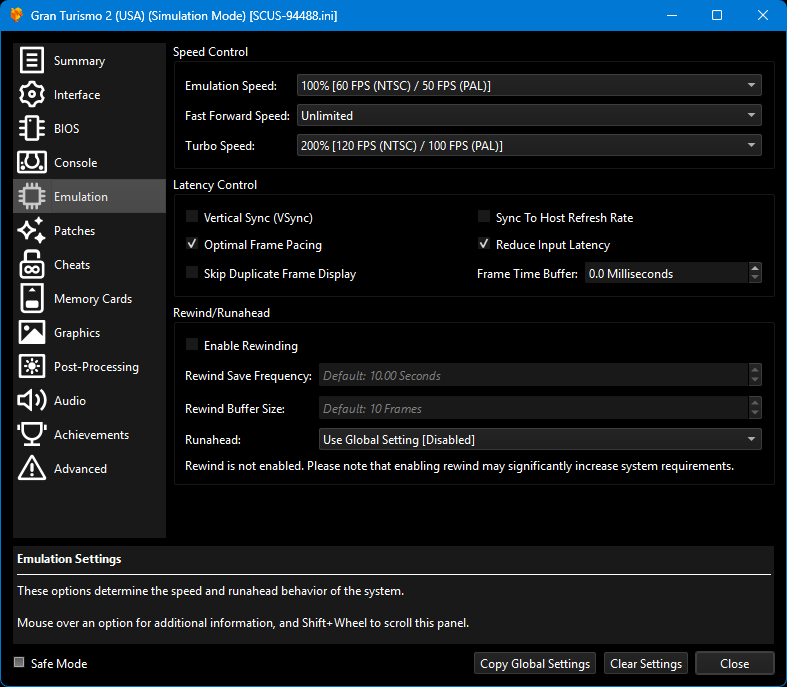
| Value | Reason | |
|---|---|---|
| Emulation Speed | 100% | Make sure the game is timing things correctly. |
| Fast Forward Speed | Unlimited | Memory card save/load runs as fast as possible. |
| Turbo Speed | 200% | Doubles the game speed. Get through Race Results faster and Tuning Shop. |
| Vertical Sync (Vsync) | Unticked | G-Sync/Freesync monitors, like my Asus PG329Q, should use the below setting to control frame rate. |
| Optimal Frame Pacing | Ticked | Game will render strictly at 60fps. My screen is at 144Hz. Slightly late frames will be displayed in the next 144Hz interval, instead of frames being late/dropped/tearing with V-Sync. |
| Sync To Host Refresh Rate | Unticked | DuckStation says: Users with variable refresh displays should disable this option. |
| Reduce Input Latency | Ticked | With working VRR, the CPU can wait until the GPU is almost ready. |
| Reduce Input Latency | Unticked | 2025: Felt this setting was making frame pacing unstable, especially when recording. |
| Frame Time Buffer | 0ms | Minimal latency as my screen will display the rendered output almost instantly. (Stopped using this in 2025.) |
| Enable Rewinding | Unticked | DuckStation says: Please note that enabling rewind may significantly increase system requirements. |


Cheats
Taken from my SCUS-94488.ini profile in DuckStation:
[Cheats]
EnableCheats = true
Enable = Silent\Full detail AI cars (Needs 8MB RAM)
Enable = Silent\60 FPS
Enable = Silent\Use 8MB RAM for polygon buffers (Needs 8MB RAM enabled)
Enable = Silent\16:9 Widescreen 2.0
Enable = Silent\Slightly higher draw distance
Gameplay Cheats
[Cheats]
EnableCheats = true
Enable = Simulation Disc\Any Car Can Play Any Circuit
Enable = Silent\L3 to toggle Mirror (tap) and HUD (hold)
Enable = Silent\Metric units (imperial to metric)
Enable = Gran Turismo 2 ASpec 1.2 ('-')\2 laps for MaxSpeed Mod
Be careful with the Any Car Can Play Any Circuit code! That will remove the requirement to win all races in GT League Page 1 before entering any races in GT League Page 2, for example. It also means any car can enter any Manufacturer Event, which generally doesn’t make sense.
Memory Cards
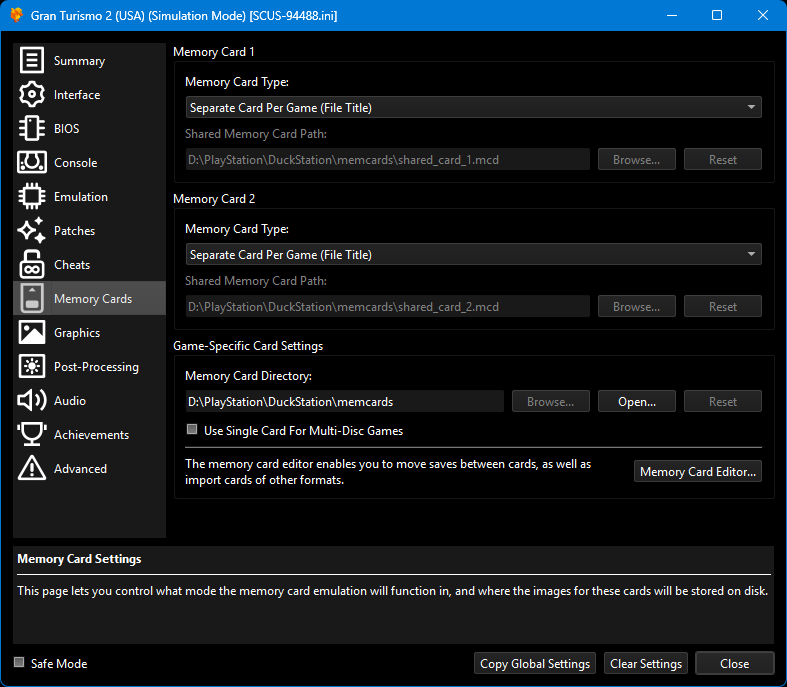
| Value | Reason | |
|---|---|---|
| Memory Card 1 | Separate Card Per Game (File Title) | Lets me have multiple installs, with and without mods, different versions of the same mod. |
| Memory Card 2 | Separate Card Per Game (File Title) | As above but lets me save more 60fps replays to make videos showing my inputs. |
Graphics
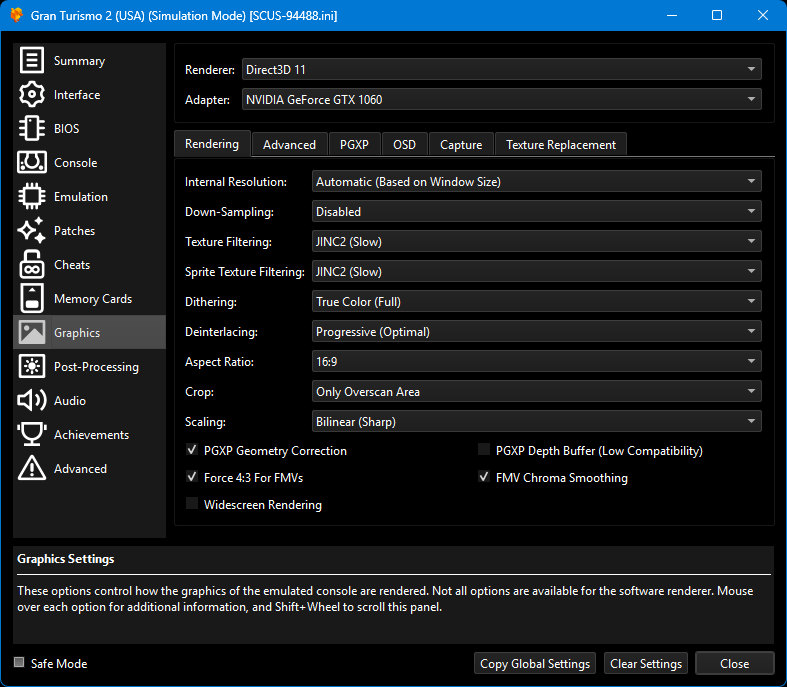
| Value | Reason | |
|---|---|---|
| Renderer | Direct3D 11 | Default choice and is the fastest. |
| Renderer | Direct3D 12 | Tried this in 2025 on my GTX1060 (driver 450-ish) and it worked but was ~5% slower. |
| Renderer | OpenGL | About 10% slower. Frame timings and latency felt better. |
| Adapter | NVIDIA GeForce GTX 1060 | Make sure to select your actual GPU and not the CPU or APU graphics package. |
Graphics > Rendering
| Value | Reason | |
|---|---|---|
| Internal Resolution | 6× Native (for 1440p) | Upscales menus far too much. Slightly below target resolution in races. |
| 8× Native | 2544×1792 pixels is about right horizontally for 2560×1440 monitor. Downscales the vertical a bit. Heavy on GPU. | |
| Automatic (Based on Window Size) | 2025: Improved a lot! Perfect horizontal size in races and most menus. Vertical overscan due to game engine. | |
| Down-Sampling | Disabled | Gran Turismo is 3D during races. |
| Texture Filtering | JINC2 (Slow) | 2025: Rounds the wheelarch textures brilliantly! Slightly cleaner than Bilinear and it can still Turbo to 120fps. |
| Bilinear Sharp | An efficient upscaling method without the blurry look of the simplest upscalers. | |
| Sprite Texture Filtering | JINC2 (Slow) | 2025: Mostly affects menus, especially the text. In-race HUD text and dials are also clean. |
| Nearest Neighbour | Bad. Edges of timing numbers and current position are blotchy. | |
| Dithering (2025) | True Color (Full) | 2025: GPU/HW: Add 'True Color (Full)' dithering mode (Stenzek) Improves the smoothness of colour transitions, text, HUD and UI. |
| Deinterlacing | Disabled (Flickering) | 2025: Obsolete. Is ignored due to Diable Interlacing mode below. |
| Progressive (Optimal) | 2025: The old Disable Interlacing tickbox is now this dropdown item. Perfect. | |
| Aspect Ratio | 16:9 | Works brilliantly! Use with the Widescreen 2.0 cheat. |
| Crop | Only Overscan Area | Removes nearly all blank space down the sides. Aspect ratio was slightly stretched before 2025 DuckStation versions. |
| Scaling | Bilinear (Sharp) | An efficient upscaling method without the blurry look of the simplest upscalers. |
| Lanczos (Sharp) | 2025: About 15% less GPU and looks as good as Bilinear (Sharp). | |
| PGXP Geometry Correction | Ticked | Very important! Solves much of the wobbly geometry that makes PS1 games look so odd compared to 2000s titles. |
| Force 4:3 For FMVs | Ticked | Not sure if Gran Turismo actually needs this. There is an intro movie and credits movie, though. |
| Disable Interlacing | Ticked | 2025: Merged into Deinterlacing drop-down list as Progressive. |
| Widescreen Rendering | Unticked | Yes, really. Widescreen 2.0 cheat code and the Aspect Ratio setting works best. |
| FMV Chroma Smoothing | Ticked | Makes video look slightly better, maybe? |
| Force NTSC Timings | Unticked | Just in case there’s any issue with region selection. It would make the game run 17% faster. |
| (Refactored) | 2025: Seems to be handled by the Region area? |
Graphics > Advanced
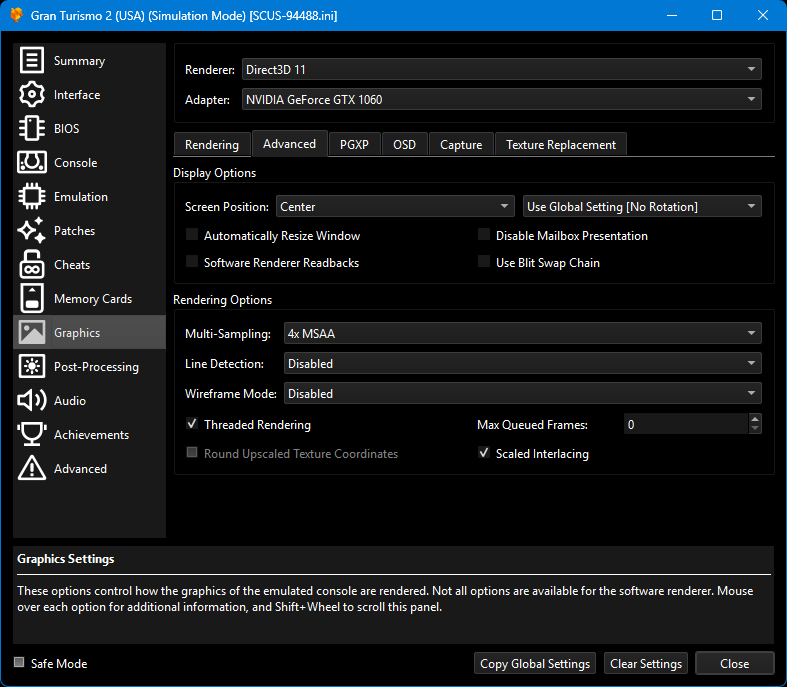
| Value | Reason | |
|---|---|---|
| Exclusive Fullscreen | Borderless Fullscreen | Lets me switch windows, use overlays and see notifications and still fills the monitor. |
| Screen Position | Center | Balances out any hardcoded borders. |
| Fine Crop Mode | ? | 2026: New setting I should try. Often get a few pixels of border to the right. |
| Multi-Sampling | 2× MSAA | Reduces jaggies on the outside edges of 3D objects. Colourful liveries in bright tracks are improved. |
| 4× MSAA | 2025: Very good edges on cars with shaped rears, such as Celica GT300. Makes the GPU work hard. | |
| Disabled | Jaggies around 3D objects aren’t visible in a 6× upscaled game recorded half size (720p). | |
| Line Detection | Disabled | Isn’t needed for this game. |
| Threaded Rendering | Ticked | It’s just how GPUs work with contemporary software. |
| Software Rendered Readbacks | Ticked | Not sure this does anything on my hardware. Might run these enhancements faster? |
| Unticked | 2025: Seems to save a few fps. | |
| Max Queued Frames | 0 | Minimise latency as I have a fast PC with VRR gaming monitor. |
Graphics > PGXP
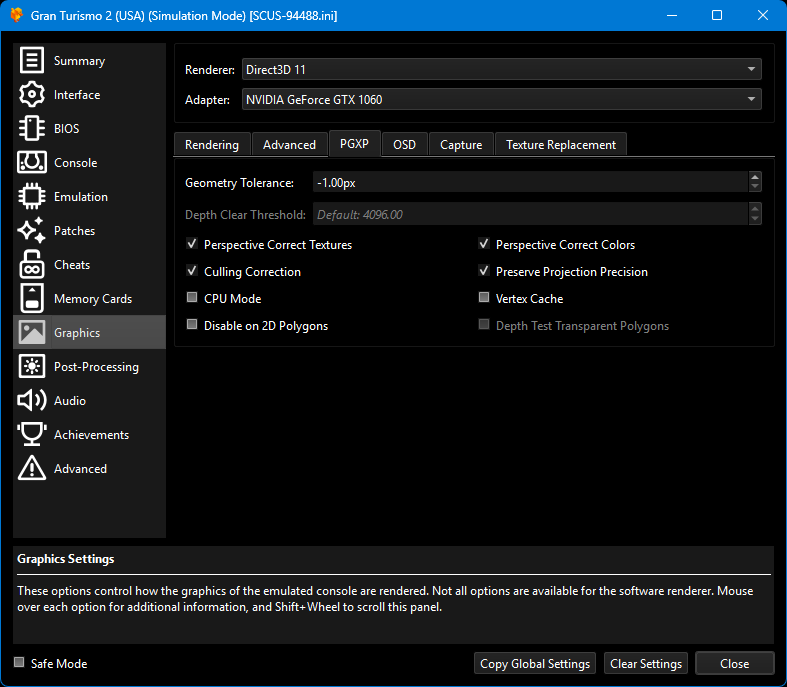
| Value | Reason | |
|---|---|---|
| Perspective Correct Textures | Ticked | Straightens out some wobble/warp/crooked effects across flat surfaces in PS1 games. |
| Culling Correction | Ticked | More accurately selects which things should or shouldn’t be drawn. |
| Perspective Correct Colours | Ticked | Not sure. Maybe to do with vertex pre-lighting effects at distance, where there’s often a fog or fade-out effect? |
| Preserve Projection Precision | Ticked | Improves the accurate placement of post-processing effects, maybe? |
On-Screen Display
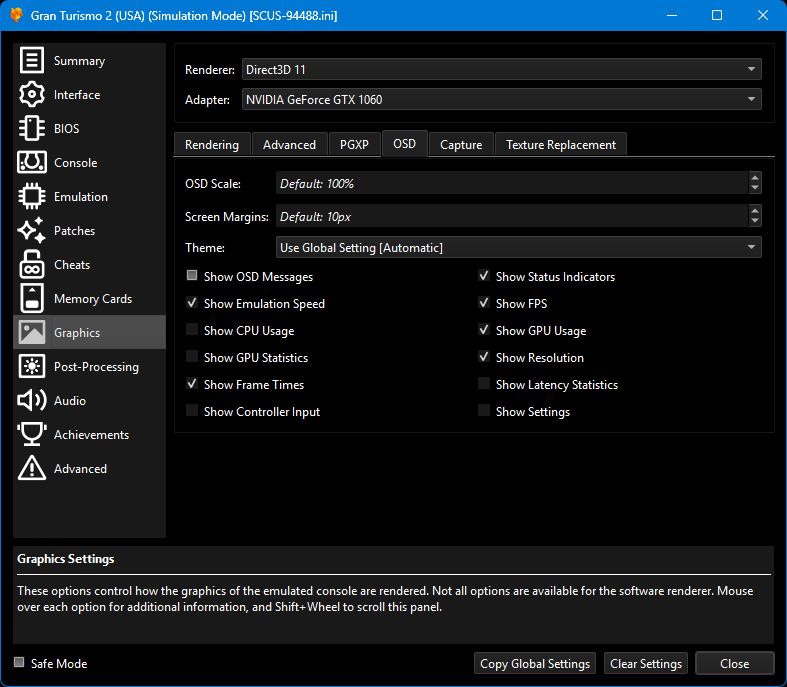
2026: This moved from a Graphics sub-menu to its own menu.
| Value | Reason | |
|---|---|---|
| Show FPS | Ticked | Verify the game is at 60fps. |
| Show Resolution | Ticked | Lets me monitor the effect of auto resolution/upscaling on target output. |
| Show Frame Times | Ticked | Excellent frametime graph. Makes late processing or lag spikes really visible as they happen. |
| Show Emulation Speed | Ticked | Verify and capture that in-game time is matching realtime. |
| Show GPU Usage | Ticked | Check for latency due to Graphics settings being too much. |
Post-Processing
Although some pretty useful filters seem to be in here, I haven’t played with them yet.
Audio
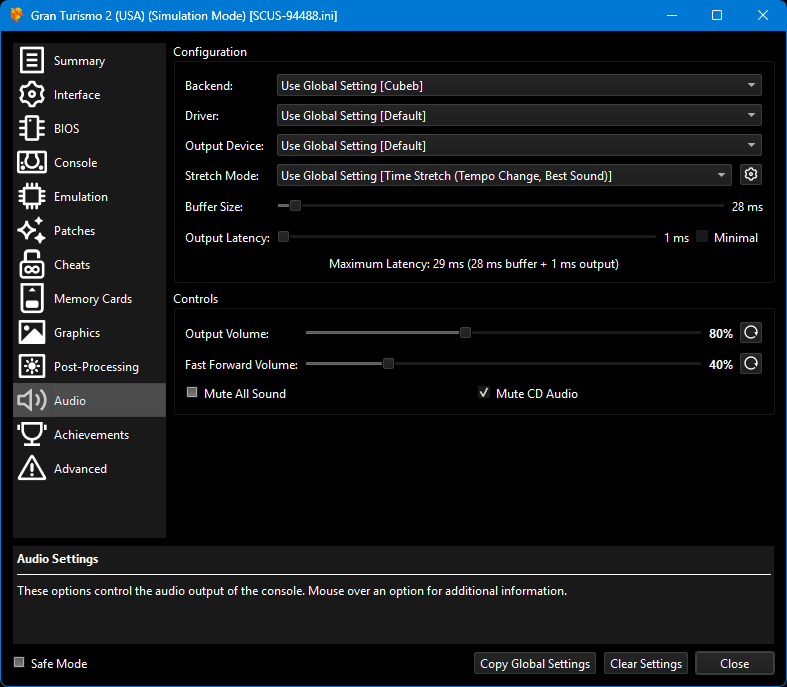
| Value | Reason | |
|---|---|---|
| Backend | Cubeb | Seems to be the most feature-rich implementation and lowest latency. |
| Expansion Mode | Disabled (Stereo) | I only use earphones (Koss KSC75x) or for DuckStation. No surrround sound. |
| Stretch Mode | Time Stretch (Tempo Change, Best Sound) | Makes sounds seem correct even if frame rates are varying a bit. |
| Buffer Size | 16ms | 2025: Tightening this as I have better frame times. |
| 38ms | Increased later in 2025 as background tasks were delaying the audio. | |
| Output Latency | 9ms | Might be ignored because I’m using CubeB backend. |
| Minimal (Output Latency) | Minimal | 2025: Ticked this when I increased Buffer Size. |
| Unticked | Caused audio drift in Game Bar captures that corrupted sound after 10+ minutes. | |
| Mute CD Audio | Unticked | GT2 songs were commercial releases in the 1990s. I set this Ticked when recording. |

The music can cause copyright checks if you share video — it happened to me on YouTube. There is a cheat code to enable/disable music on a button press. That will be good for streaming to make the menus more entertaining.
DuckStation Controllers (Global)
| Value | Reason | |
|---|---|---|
| Enable XInput Input Source | Ticked | 2025: I previously used this mode. XBox One wireless controller. |
| Enable SDL Input Source | Ticked | 2026: Now the preferred option according to the window text. Same controller. |
Controller Port 1
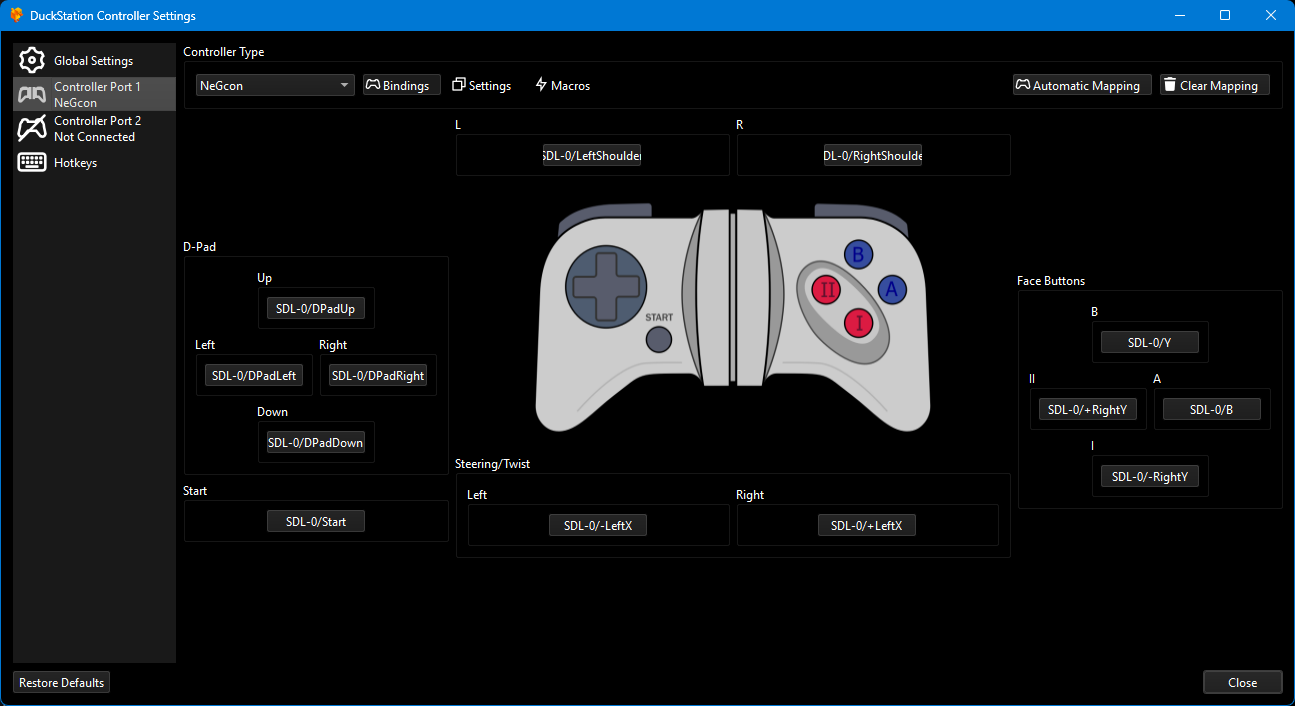
| Value | Reason | |
|---|---|---|
| Controller Type | NeGcon | Unlocks fully customised analog steering and throttle setups in GT2! |
Bindings
Radio control car controls, where left stick steers and right stick is gas/brake:
| Value | Reason | |
|---|---|---|
| Steering/Twist > Left | SDL-0/-LeftX | Push left stick left to steer left. |
| Steering/Twist > Right | SDL-0/+LeftX | Push left stick right to steer right. |
| II | SDL-0/+RightY | Push right stick downward to throttle up. |
| I | SDL-0/-RightY | Push right stick forward to slow down. |
| L | SDL-0/+LeftShoulder | Gear up |
| R | SDL-0/+RightShoulder | Gear down. |
Right stick is the ‘wrong’ way round. With my settings, right stick up will confirm GT2 menus and right stick down will exit.
GT2 uses button II as confirm and I as cancel. Even though I is Acceleration and II is Brake.
Axis Settings
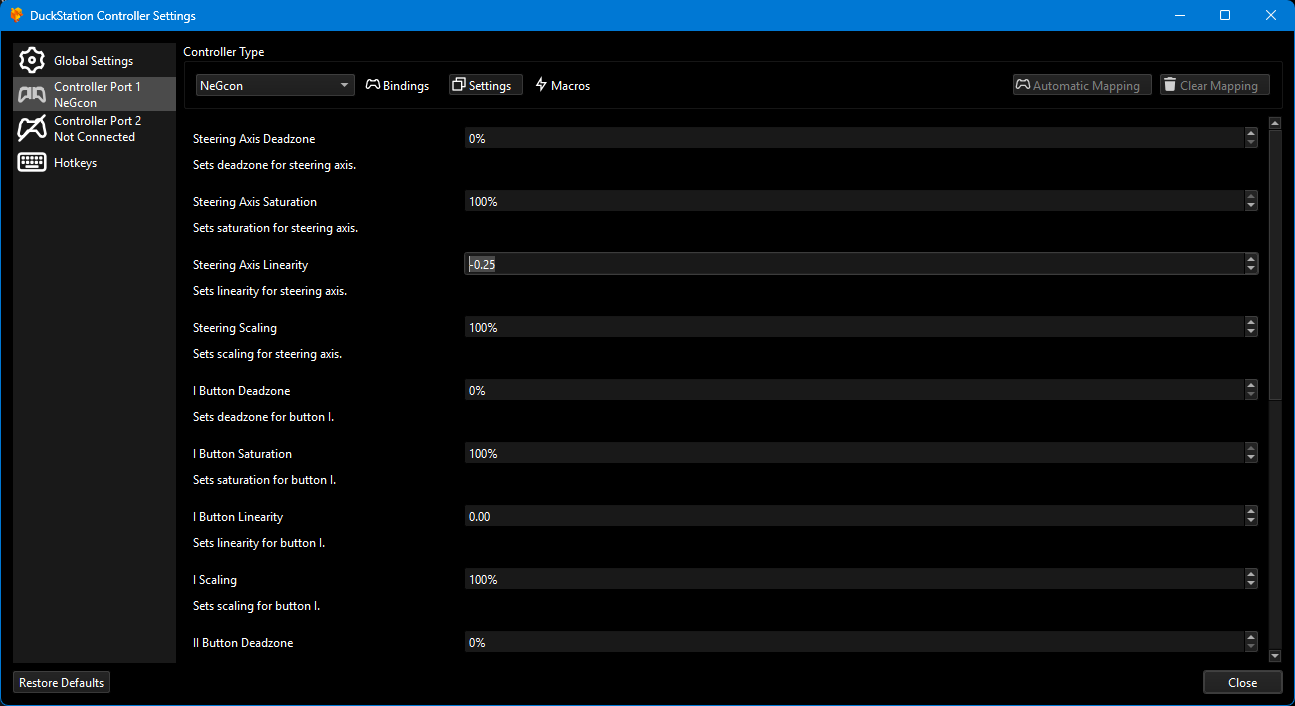
| Value | Reason | |
|---|---|---|
| Steering Axis Deadzone | 0% | Default. Uses the smallest deadzone built into the game. |
| Steering Axis Saturation | 100% | Default. Not sure what this does. |
| Steering Axis Linearity | -0.25 | 2025: Re-calibrated with the in-game options. Makes small steering inputs bigger while keeping full stick range. Almost GT6/GTA5 style. |
| Steering Scaling | 100% | Default. Values below 100% reduce max steering. |
1P Analog Settings
Options within Gran Turismo 2 to calibrate the controller!
- When you first enter these settings, you’ll get a bar with a line that tracks your steering position.
- Move the stick all the way left and press Start.
- Now move the stick all the way right and press Start.
- You’ll now see the calibration interface with the raw values – that you can change!
- Use the D-pad Up and Down to select a setting.
- Move the stick to where you want that setting then press Start.
- Or use D-Pad Left and Right to scroll the values.
- If you use my DuckStation mapping above, the Acceleration and Brake settings will use your right stick.
| Value | Reason | |
|---|---|---|
| Steering > Center | 5 | My left stick drifts/rests a bit to the right so I move the midpoint to match. |
| Steering > Max | 122 | Move the steering all the way right then push Start. |
| Steering > Margin | 5 | 2025: Controller deadzone fix! Reducing the default 33% deadzone is a huge upgrade to control for ovals and overtakes. |
| Acceleration > Max | 255 | Full range to feather accurately when hard on the gas. |
| Acceleration > Margin | 16 | Big deadzone to make sure I’m not on throttle mid-corner. |
| Brake > Max | 230 | Set this less than full stick movement to make sure I get full braking quickly. |
| Brake > Margin | 25 | Large deadzone because my right stick drifts/rests downward. |

Achievements
| Value | Reason | |
|---|---|---|
| Enable Hardcore Mode | Unticked | 2026: Global default is Ticked! That will block ‘cheats’ for 60fps, Widescreen, etc. |
| Enable Achievements | Ticked | Gotta catch ’em all. |
| Show Achievement Notifications | Ticked | Gotta know when I catch ’em. |
| Show Leaderboard Notifications | Ticked | Doesn’t seem to do anything? (Probably a skill issue.) |
| Enable In-Game Overlays | Ticked | Shows progress on a challenge or preset achievement. Haven’t used this yet. |
My Laptop System Specs
For context, here are the 2017 gaming laptop components I used the emulator on until 2025:
- CPU:
- Intel i7-7700HQ (4 cores, 8 threads)
- RAM:
- 16GB DDR4 2400MT/s Kingston HyperX
- GPU:
- nVidia GeForce GTX 1060 Mobile (6GB)
- GPU Driver Version:
- 451.67
- GPU Driver Date:
- July 2020 via Windows Update
- OS Storage:
- 500GB Samsung 960 Evo-like (NVMe m.2)
- Game Storage:
- 500GB Crucial MX100 (SATA SSD)
My System Tuning
Laptop Performance
- Power mode:
- Better performance (6× resolution)
- Power mode:
- Best performance (recording)
Throttlestop
- Speed Shift EPP:
- 0
- Disable Turbo:
- Ticked (heat and laptop power budget)
- Non Turbo Ratio:
- 27 (cannot edit)
- 1 Core Turbo Ratio:
- 38
- 2 Cores Turbo Ratio:
- 36
- 3 Cores Turbo Ratio:
- 32
- 4 Cores Turbo Ratio:
- 30
- CPU Core Offset Voltage:
- -99.6mV (-0.0996V)
- CPU Cache Offset Voltage:
- -99.6mV (-0.0996V)
Afterburner
- Core Clock Curve:
- Flat-lined above 1050MHz
- Core Clock Curve:
- 8× Resolution in 2025: Flat-lined at 1202MHz
G-Sync
These settings are on my GTX1060 laptop. The menu is from right-clicking the desktop and clicking NVIDIA Control Panel:
- From the left menu, Set Up G-SYNC:
- Apply the following changes:
- Enable G-SYNC, G-SYNC Compatible
- Enabled for windows and full screen mode
- Select each screen to apply this to them all.
- Apply the following changes:
Global 3D Profile
Do these matter?
- Image Sharpening:
- Sharpening Off, Scaling disabled (registry tweak)
- Low Latency Mode:
- On
- Max Frame Rate:
- Off
- Power management mode:
- Optimal power
- Preferred refresh rate:
- Application-controlled
- Threaded optimisation:
- On
- Triple buffering:
- On
- Vertical sync:
- Use the 3D application setting
- Vertical sync:
- Use the 3D application setting
DuckStation profile
Firstly, how to create a profile for DuckStation:
- Start DuckStation and then close it.
- Return to nVidia Control Panel.
- From left menu Manage 3D settings.
- Tab Program Settings.
- Button Add – can take several seconds to respond.
- Window called Add appears
- Make sure Sort by is set to Recently used.
- Select DuckStation PS1 Emulator.
- Button Add Selected Program.
Now, settings which seem to matter. Latency gains are very nice with such a low frame rate:
- Low Latency Mode:
- Ultra (started in 2025; previous was 1)
- Max Frame Rate:
- 60
- Monitor Technology:
- G-Sync (Global)
- Power management mode (previously called GPU Power):
- Prefer maximum Performance
- Preferred refresh rate:
- Application-controlled
- Texture filtering - Negative LOD bias:
- Allow
- Texture filtering - Quality:
- High Quality
- Texture filtering - Trilinear optimisation:
- Off (maybe should be on?)
- Vertical sync:
- Off
Remember that my monitor is running at 144Hz in Windows and in the nVidia panel and in its hardware OSD. The game runs at 60Hz with slower frame pacing at times. Sending all the frames the game renders and letting the screen display them all in its shorter intervals is achieved with these settings. It’s a unique advantage to having VRR support in a low-refresh game with a high-refresh monitor. Made possible by DuckStation. It really is a fast and modern emulator.